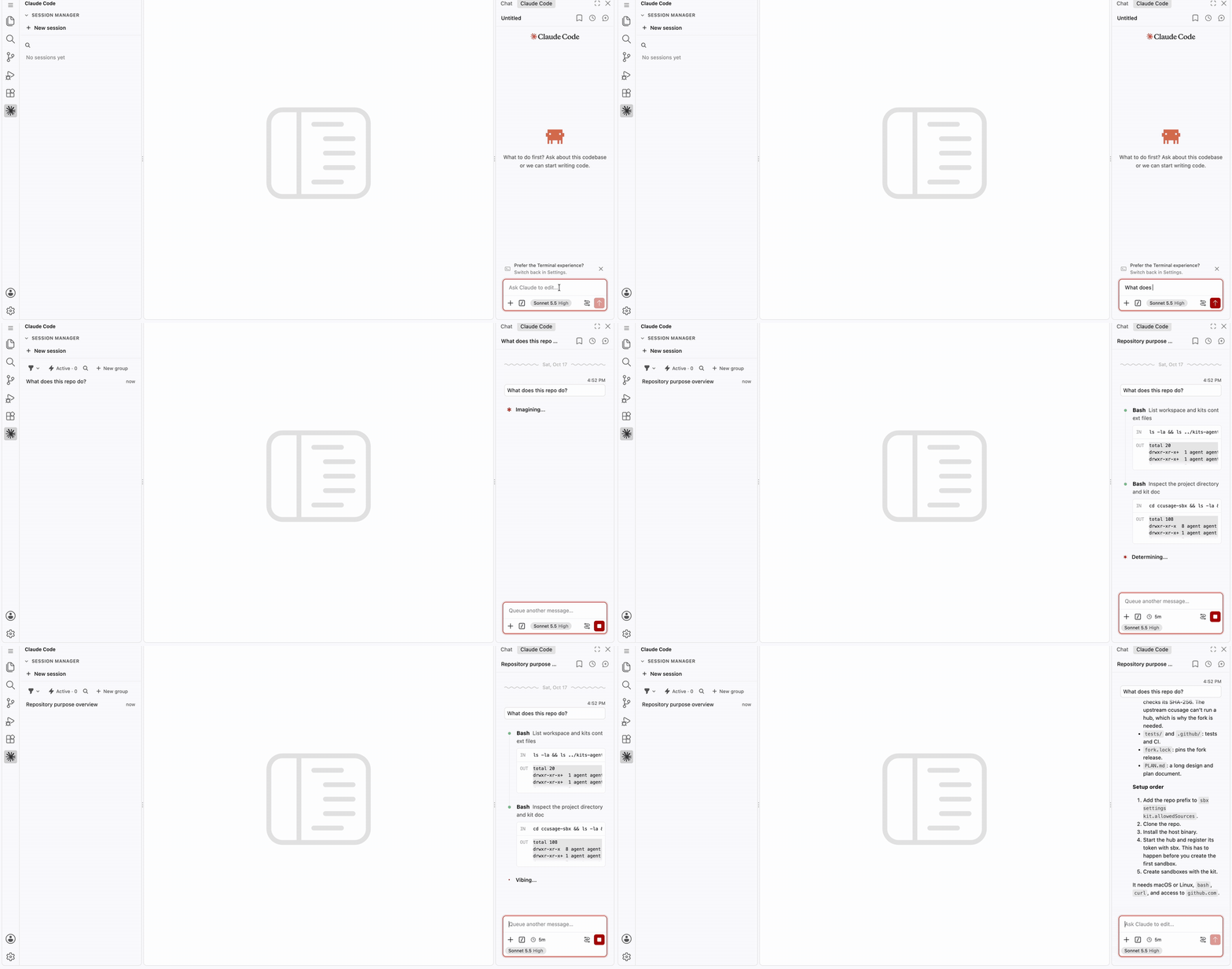
I have been testing out Docker’s cloud sandboxes (sbx --cloud) recently and wanted a quick way to spin up a disposable, browser-based IDE with Claude Code ready to go. I put together krisfoster/sbx-cloud-code-server-demo, a small wrapper around sbx and the code-server mixin kit from docker/sbx-kits-contrib. Run one script, wait for the health check to pass, and open the printed URL to get VS Code and the Claude Code extension running inside a remote microVM.
How the Launch Script Works
Local sandboxes mount your current directory from the host machine. Cloud sandboxes do not have a host filesystem to mount, and configuring ports, network egress, and workspace directories by hand takes several commands. The launch.sh script ties those steps together:
./launch.sh                                        # medium sandbox (4 vCPU / 8 GiB), 4h TTL
./launch.sh -n my-demo -t 2h -s large              # custom name, TTL, and size
./launch.sh -r https://github.com/owner/repo.git   # clone a repo into the workspace
./launch.sh -y                                     # skip permission prompts in the Claude VS Code panel
./teardown.sh                                      # destroy the sandbox when finished
Under the hood, launch.sh walks through a few steps:
- Create the cloud sandbox: It runs
sbx --cloud run -dusing the built-inclaudebase agent with--kit git+https://github.com/docker/sbx-kits-contrib.git#dir=code-serverlayered on top. Because the kit is a mixin that requires theclaudeagent, the VS Code extension shares the sandbox’s underlying Claude configuration. - Publish port 8080: It requests a public HTTPS endpoint for
code-serverviasbx --cloud ports <name> --publish 8080. - Wait for readiness: The first boot installs
code-serverand the Claude Code extension, which takes a couple of minutes. The script pollshttp://localhost:8080/healthzinside the sandbox usingsbx --cloud execuntil the server answers, or dumps/tmp/code-server.logif it times out. - Clone a repository: When you pass
-r https://github.com/owner/repo.git, the script extracts the Git host to add--allow-network <host>at creation time. Once the container is up, it reads the target workspace path from/home/agent/.local/bin/start-code-server.shinside the sandbox and clones the repository there. - Patch permission settings (optional): With
-y, it merges bypass-permission flags intocode-serverand Claude’s user config files inside the sandbox. - Print the URL: It runs
sbx --cloud ports <name>and prints the public link to open in your browser.
Signing In to Claude
You have two options for authenticating Claude inside the cloud sandbox.
1. Pre-seed an sbx Secret (Recommended)
If you store an Anthropic credential as an sbx cloud secret before launching, the sandbox receives a placeholder token and the cloud proxy injects the real credential into outbound API requests. Real keys stay out of the microVM entirely.
# Use your Claude subscription via browser OAuth on your host
sbx --cloud secret set anthropic --oauth

# Or pipe in an API key so it stays out of shell history
echo "$ANTHROPIC_API_KEY" | sbx --cloud secret set anthropic
One catch caught me out while testing: cloud secrets are only wired up when a sandbox is created. If you add or rotate a secret while a sandbox is already running, even stopping and starting it will keep showing “Not logged in”. You have to run ./teardown.sh and launch a fresh instance.
2. Interactive Browser Login
If you launch without a stored secret, open the code-server URL in your browser and start claude in the integrated terminal (Ctrl+` ) or click the Claude Spark icon in the editor toolbar.
Follow the OAuth sign-in link in your local browser. The final step redirects to http://localhost:<port>/callback?code=.... That callback listener is running inside the remote sandbox rather than on your laptop, so your browser will show a connection error. Copy the full failed localhost URL from your browser’s address bar and paste it straight back into the sandbox terminal. Claude extracts the code parameter and completes the login.
Bypassing Permission Prompts in the VS Code Panel
Inside a cloud sandbox, Claude can run in three places, and two of them already skip permission prompts out of the box. Attaching via sbx --cloud attach runs with --dangerously-skip-permissions by default, and typing claude in code-server’s integrated terminal picks up permissions.defaultMode: "bypassPermissions", which sbx writes to ~/.claude/settings.json on every boot.
The Claude Code VS Code panel (the Spark icon in the sidebar) ignores ~/.claude/settings.json and uses its own extension settings instead. Passing -y to launch.sh runs an sbx --cloud exec command using jq to merge two patches inside the sandbox without clobbering existing keys from the kit or sbx:
~/.local/share/code-server/User/settings.json: Merges"claudeCode.allowDangerouslySkipPermissions": trueand"claudeCode.initialPermissionMode": "bypassPermissions"so new panel chats start straight in bypass mode. This file persists across sandbox restarts.~/.claude.json: Merges"hasSeenAutoDefaultNudge": true. Becausesbxsets the user-leveldefaultModetobypassPermissionsrather thanauto, the panel otherwise pops up a “Make auto mode your default permission mode?” prompt on first open. SettinghasSeenAutoDefaultNudgerecords the equivalent of clicking “No, keep bypass permissions”. Note thatsbxregenerates~/.claude.jsonif you stop and restart the sandbox, so if the prompt reappears after a restart, click No (clicking Yes switches your default back toauto).
Watch Out for --auth none
The upstream code-server kit starts the editor with --auth none. That is sensible for a local sandbox where port 8080 only binds to 127.0.0.1 on your own machine.
In a cloud sandbox, publishing port 8080 creates a public URL. Anyone with that URL gets a full editor and terminal session inside the sandbox without a password prompt. Treat the generated URL like a secret, keep the TTL short (-t 2h), and run ./teardown.sh as soon as you finish. If you want to keep an instance around for longer, fork the kit and drop --auth none from the startup script.
Get the Code
The scripts, secret setup examples, and detailed notes on permission modes are on GitHub at krisfoster/sbx-cloud-code-server-demo.